
Bluey's Happy Snaps System Requirements: Full PC Specs
Check Bluey's Happy Snaps system requirements, compare minimum and recommended PC specs, and review storage, controls, and local co-op before you play.
Jump to

What Are Bluey's Happy Snaps System Requirements?
Before you grab Dad’s camera, check the Bluey's Happy Snaps system requirements against your PC. Matching the processor, graphics card, and memory requirements helps you assess your setup before buying this family adventure. The Bluey's Happy Snaps system requirements start at Windows 11, 8 GB of RAM, and a GeForce GTX 1650 or Radeon RX 6400, with a higher recommended tier outlined below.
Bluey and Bingo’s adventure takes you around familiar places in Brisbane, where you photograph wildlife, play with toys, and decorate a scrapbook. Whether you’re setting up a family desktop or checking a gaming laptop, start with the hardware comparison.
| Component | Minimum Requirements | Recommended Requirements |
|---|---|---|
| Operating system | Windows 11 or a valid compatibility layer | Windows 11 or a valid compatibility layer |
| AMD processor | Ryzen 5 1600X | Ryzen 5 3600X |
| Intel processor | Core i5-9400F | Core i5-10400 |
| System memory | 8 GB RAM | 16 GB RAM |
| AMD graphics | Radeon RX 6400 | Radeon RX 5700 XT |
| NVIDIA graphics | GeForce GTX 1650 | GeForce RTX 3050 |
| DirectX, Epic Games Store version | DirectX 11 | DirectX 12 |
| Storage, Epic Games Store version | 5 GB | 8 GB |
The Steam version also requires a 64-bit processor and operating system and includes a broadband internet connection in both requirement tiers. Its CPU, RAM, and graphics targets match the corresponding hardware tiers above.
Read the AMD and Intel processor entries as alternatives. The same applies to the AMD and NVIDIA graphics cards: you’re comparing your system with the appropriate options, rather than looking for a PC containing every component in the table.
For a quick check, write down your operating system, exact CPU model, installed RAM, graphics processor, and free drive space. Compare those details individually. A familiar brand name alone won’t tell you where your computer falls.
Compare Your Processor and Graphics Card Carefully
The processor and graphics card deserve separate checks when reviewing Bluey's Happy Snaps system requirements. A computer can match the recommended memory target while having graphics hardware below the minimum tier.
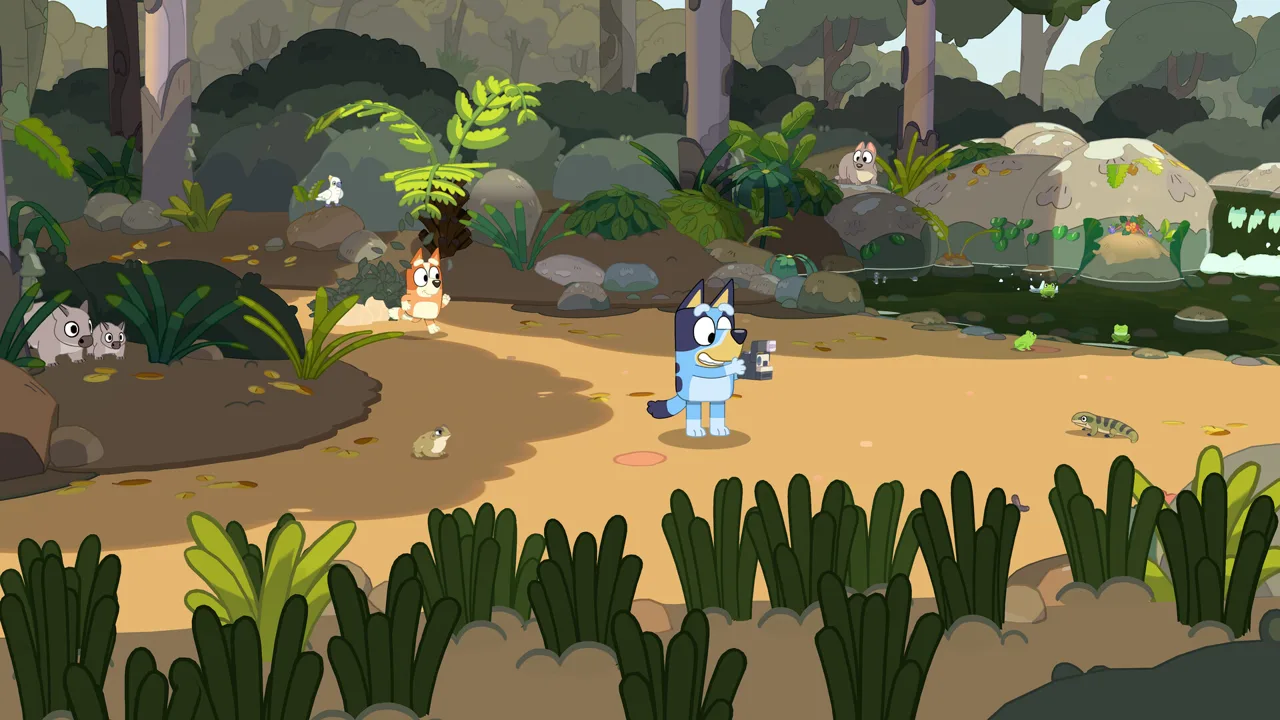 Image: Steam / Gameloft
For processors, the minimum choices are the AMD Ryzen 5 1600X and Intel Core i5-9400F. The recommended choices move to the AMD Ryzen 5 3600X and Intel Core i5-10400. Keep the complete model names handy when comparing your machine, including their numbers and letter suffixes.
“Intel Core i5” covers many processors, just as “AMD Ryzen 5” does. Check the actual model in your computer instead of relying on the family name printed on a laptop sticker or product description.
Graphics follow the same pattern. The minimum tier names the AMD Radeon RX 6400 and NVIDIA GeForce GTX 1650. The recommended tier names the AMD Radeon RX 5700 XT and NVIDIA GeForce RTX 3050.
Checking a Family Laptop
Pay attention to the graphics processor when checking a laptop used mainly for homework, streaming, or browsing. Having Windows 11 and enough RAM addresses only part of the requirements.
Use this checklist before choosing the PC version:
- Record the complete processor model.
- Identify the exact graphics processor.
- Compare RAM separately from graphics hardware.
- Check whether the computer meets each component target.
- Keep minimum and recommended comparisons separate.
For example, a PC with a Core i5-9400F, GTX 1650, and 8 GB of RAM matches the named minimum CPU, NVIDIA GPU, and memory combination. A PC with a Core i5-10400, RTX 3050, and 16 GB of RAM matches the corresponding recommended combination.
Those examples make the two tiers easier to recognize. If your computer mixes components from different tiers, assess each part on its own. Matching the recommended processor doesn’t automatically place the graphics card in that tier, too.
Check Windows, RAM, and Installation Space
The Bluey's Happy Snaps system requirements also call for attention to software and storage. These checks are easy to overlook when the conversation centers on graphics cards, but they belong on the same preparation checklist.
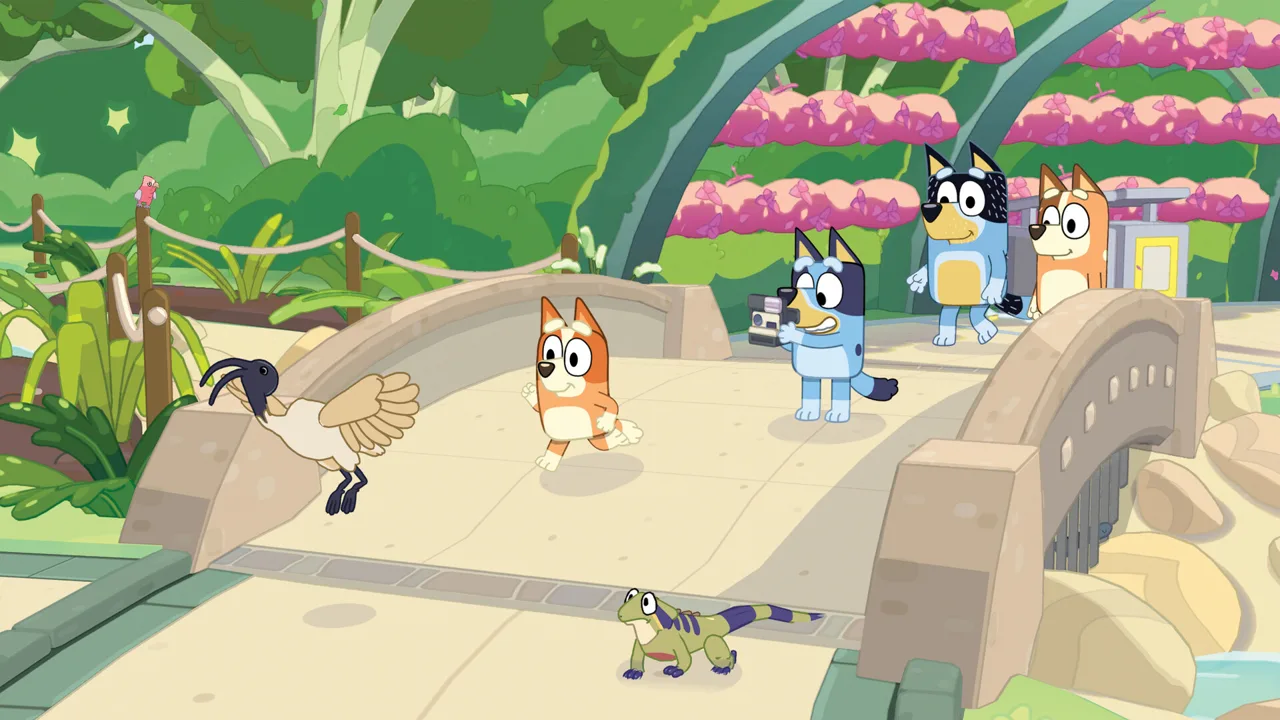 Image: Steam / Gameloft
Windows and Compatibility Layers
Windows 11 is the named operating system for both PC requirement tiers. Both tiers also include the wording “or valid compatibility layer.”
For Steam, the platform support is Windows, with a 64-bit processor and operating system required. Keep that Windows configuration as your starting point when assessing a standard PC installation.
If you’re comparing several computers at home, note the operating system alongside the hardware specifications. A machine’s ability to run other family games doesn’t replace a check against this game’s requirements.
8 GB Minimum, 16 GB Recommended
The memory target rises from 8 GB at minimum to 16 GB at recommended. These figures refer to system RAM.
Keep system memory and graphics hardware as separate entries in your comparison. A PC with 16 GB of RAM reaches the recommended memory target, but its processor and GPU still need their own checks.
For a shared family computer, check the actual installed memory rather than relying on an old purchase receipt or remembering the original configuration.
Allow Space for the Version You Install
The Epic Games Store PC version has a 5 GB minimum storage requirement and an 8 GB recommended requirement. It also pairs DirectX 11 with the minimum tier and DirectX 12 with the recommended tier.
Use the 8 GB figure when checking against that version’s recommended configuration. Keep these PC figures separate from console storage planning; check the edition you’re purchasing for your chosen platform.
Internet access also matters for updates. Additional voice languages are scheduled to arrive through a free update after release, and downloading that update requires an internet connection. English voice acting is available from launch, along with localized text that includes American English.
Set Up Controllers, Local Co-op, and Connectivity
Once your PC matches the Bluey's Happy Snaps system requirements, consider how you want to share the adventure. The game supports solo play and local co-op for two players.
The main player handles the camera and leads the adventure, while the second player joins the exploration and poses for pictures. You can also play with toys together along the way. That gives a parent, sibling, or friend a role beyond watching someone else fill the scrapbook.
The Steam version has full controller support and recommends a gamepad. Include your preferred controls in your setup check, especially if you plan to play together.
| PC Version | Features |
|---|---|
| Steam | Full controller support, gamepad recommended, Steam Cloud, achievements, Family Sharing |
| Epic Games Store | Achievements and the Windows hardware requirements shown above |
| Xbox on PC | Xbox Play Anywhere, Xbox cloud saves, and Xbox achievements |
These features address different parts of the experience. Controller support concerns how you play, while cloud saves concern stored progress. Xbox Play Anywhere is another purchase-related feature to consider if you also use a supported Xbox console.
Local Multiplayer and Internet Access
Bluey’s Happy Snaps has no online multiplayer. Its shared adventure happens through local co-op, with the second player alongside you.
Keep that distinction separate from downloads and platform connectivity. Steam includes broadband internet access in its PC requirements, and the additional voice-language update needs an internet connection to download.
If you’re preparing the game for a family session, finish the download and any updates you want beforehand. That leaves the play session for chasing bin chickens, trying toys, and taking photos.
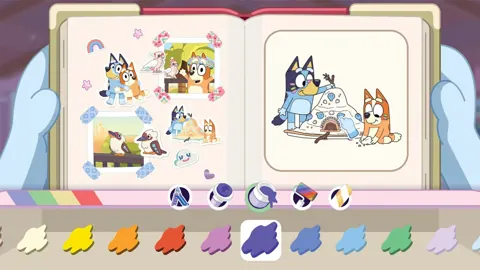
The camera at the center of the adventure is Dad’s in-game camera. Photos become part of your scrapbook, and photography unlocks stickers inspired by characters, wildlife, and activities. You can arrange those stickers, customize scrapbook pages, and unlock costumes as you explore.
The game also includes activity ideas that carry the fun beyond the screen, from cushion forts to cardboard creations.
Consider Console Versions Alongside PC
Checking Bluey's Happy Snaps system requirements is useful when you’re deciding whether to use an existing computer or play on a console you already own. The game is available across current and older console generations, as well as Windows PC.
| Platform Family | Available Systems or Stores |
|---|---|
| Windows PC | Steam, Epic Games Store, Xbox on PC |
| Nintendo | Nintendo Switch, Nintendo Switch 2 |
| PlayStation | PlayStation 4, PlayStation 5 |
| Xbox consoles | Xbox One, Xbox Series X|S |
On PC, compare your individual components with the hardware targets. On console, select the version for your system and check the edition details before purchasing.
Xbox supports Smart Delivery and Xbox Play Anywhere. Its features also include cloud saves and achievements. If you move between Xbox hardware and a Windows PC, review the Bluey’s Happy Snaps Xbox purchase options when choosing your version.
For a Steam setup, the Bluey’s Happy Snaps Steam page provides the purchase option for that PC version.
The shared adventure remains centered on exploring familiar places with Bluey and Bingo, taking pictures, and building a personalized scrapbook. Locations include South Bank, The Lookout, and Hammerbarn, with friends and wildlife to encounter along the way.
Before buying, work through a short final checklist:
- Match your PC’s CPU, GPU, RAM, and operating system.
- Check free space for your chosen version.
- Decide whether you’ll play solo or with a second local player.
- Review controller support for your PC version.
- Download updates before settling in to play.
FAQ
What Are the Minimum Bluey's Happy Snaps System Requirements?
The minimum PC hardware is an AMD Ryzen 5 1600X or Intel Core i5-9400F, 8 GB of RAM, and an AMD Radeon RX 6400 or NVIDIA GeForce GTX 1650. The operating system requirement is Windows 11 or a valid compatibility layer. The Epic Games Store version also specifies DirectX 11 and 5 GB of storage.
How Much RAM Does Bluey’s Happy Snaps Need?
Bluey’s Happy Snaps requires 8 GB of RAM at minimum and recommends 16 GB. Check your processor and graphics card alongside memory when comparing your PC with either tier.
Does Bluey’s Happy Snaps Support Controllers and Two Players?
Yes. The Steam version supports controllers fully and recommends a gamepad. Local co-op lets two players share the adventure, with one leading behind the camera and the other exploring and posing for photos.
Does Bluey’s Happy Snaps Have Online Multiplayer?
No. Bluey’s Happy Snaps supports solo play and local co-op, with no online multiplayer. Steam includes broadband internet in its PC requirements, and an internet connection is required to download the additional voice-language update.
Continue with
 Bluey's Happy Snaps Xbox Game Pass: Access, Plans & Co-OpBluey's Happy Snaps Xbox Game Pass guide: compare console, PC, and cloud access, check prices, and explore local co-op before playing with Bluey and Bingo.
More in Platforms

Bluey's Happy Snaps Download: PC and Console Guide
Find your Bluey's Happy Snaps download on PC, PlayStation, Xbox, and Nintendo Switch. Compare editions, check PC specs, and get ready for family photo fun.
Bluey's Happy Snaps Nintendo Switch 2: Buyer's Guide
Explore Bluey's Happy Snaps Nintendo Switch 2 features, price, local co-op, mouse controls, and editions. Find out what to know before your family plays.
Bluey's Happy Snaps Nintendo Switch: A Family Guide
Explore Bluey's Happy Snaps Nintendo Switch with details on local co-op, Switch 2 features, editions, storage, and scrapbook tips for your family game.
Bluey's Happy Snaps Platforms and Wishlist: Full Guide
Bluey's Happy Snaps platforms and wishlist guide: compare consoles and PC, explore editions, check Game Pass access, and choose where to buy or save it.
Join the community
Official channels for news, updates and player help: