Bluey's Happy Snaps Steam Deck: Settings and Controls
Bluey's Happy Snaps Steam Deck guide: explore Verified compatibility, default settings, built-in controls, local co-op limits, and scrapbook activities.
Jump to
Does Bluey's Happy Snaps Work on Steam Deck?
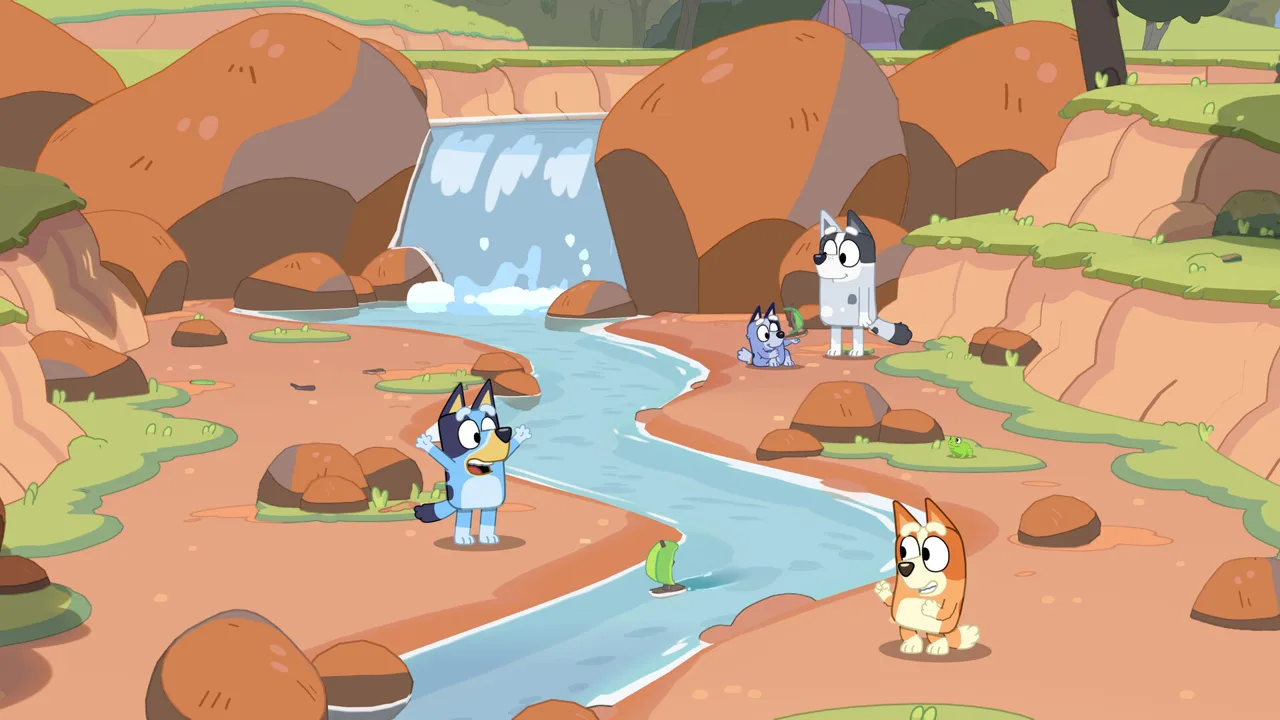
Bluey's Happy Snaps Steam Deck compatibility is Verified, so you can take Bluey and Bingo’s photography adventure onto the handheld with functional default controls and readable interface text. That matters when you’re helping a younger player follow photo clues, operate the camera, and decorate a scrapbook on a smaller screen. Start your Bluey's Happy Snaps Steam Deck adventure with the default configuration, and use the built-in controls for the main player.
The game follows Bluey and Bingo after they discover Dad’s old camera. You explore familiar places, photograph wildlife and playful moments, and fill scrapbooks with pictures and decorations. Solo play and local two-player co-op are both part of the adventure.
Here’s what the compatibility ratings mean for this particular game:
| Compatibility detail | Status or behavior |
|---|---|
| Steam Deck rating | Verified |
| Default controller configuration | Fully functional |
| Controller button symbols | Match the Steam Deck |
| Interface text | Legible on the handheld |
| Default configuration performance | Rated performant |
| SteamOS / Linux rating | Playable |
| External controller as the primary player | Not supported |
The practical distinction is the primary controller. Handheld play uses the Deck’s integrated controls, while an external controller cannot serve as the main player’s input device. Keep that limitation in mind before arranging a docked session around a separate gamepad.
The Steam version is a Windows release, with Windows 11 or a valid compatibility layer included in its system requirements. Its Steam Deck rating applies to playing that version on the handheld; it does not mean there is a separate native Linux edition.
For a purchase or download, open the Bluey's Happy Snaps Steam page.
Bluey's Happy Snaps Steam Deck Settings: Start With Defaults
The default configuration is the supported starting point for Bluey's Happy Snaps Steam Deck play. It already covers the essentials: functional controls, matching button symbols, readable text, and performant operation.
 Image: Steam / Gameloft
Start there before changing anything. For this game, getting comfortable with the camera and scrapbook interface is more useful than immediately rebuilding the control layout.
| Setting | Recommended value |
|---|---|
| Game configuration | Default configuration |
| Controller layout | Default controller configuration |
| Main player input | Steam Deck built-in controls |
| Text language for American English | English (United States) |
| Voice language for English audio | English |
These recommendations keep the setup tied to the game’s supported features. Full controller support is included, and a gamepad is recommended for the PC version.
Give the default layout time during the opening activities. Practice moving through a location, taking a photograph, and navigating the scrapbook before deciding whether you need a different arrangement. Those actions cover much of what you’ll be doing throughout the adventure.
For younger players, read a photo clue together and connect it to something visible nearby. A prompt involving a bird, toy, or friend becomes easier to follow when the child knows what they’re looking for. Let the game’s matching button symbols guide the controller lesson.
English voice acting is available from launch, alongside American English text. Use the spoken dialogue and written prompts together when introducing activities. The game also includes localized text in languages such as French, German, Italian, Japanese, Brazilian Portuguese, Spanish, and Chinese.
Keep the focus on the screen during your initial setup. Check whether the player can comfortably read the clues and recognize the controller symbols while holding the Deck in their usual position. Interface legibility is part of the Verified rating, but helping a child understand a prompt is still a separate part of learning the game.
Controls, Local Co-op, and the External Controller Limit
The central control tip for Bluey's Happy Snaps Steam Deck sessions is straightforward: keep the main player on the handheld’s built-in controls.
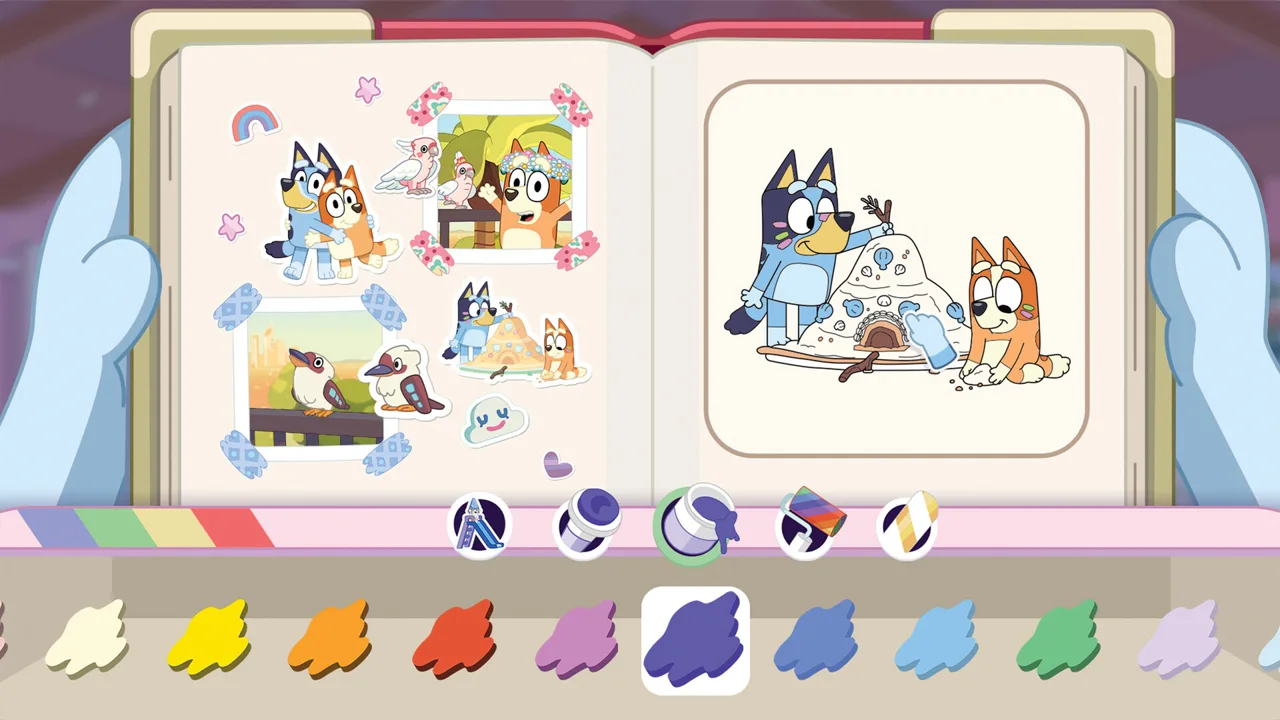 Image: Steam / Gameloft
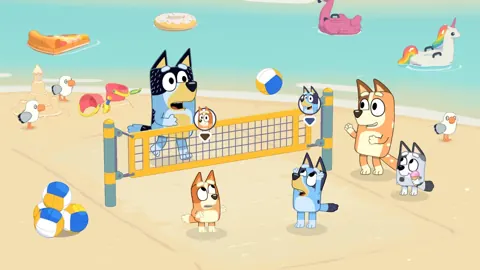
The game supports a second local player, but the roles have different responsibilities. The main player leads the adventure behind the camera. The second player joins the exploration, poses for pictures, and shares activities involving toys.
| Play arrangement | How the roles work |
|---|---|
| Solo | One player leads the adventure and takes photographs |
| Local co-op, main player | Leads the adventure behind the camera |
| Local co-op, second player | Explores, poses, and plays alongside the main player |
| Steam Deck primary input | Uses the built-in controls; external primary controllers are not supported |
Choose roles around the activity you want to share. Put the person who wants to frame photographs in the main role. Give the second role to the person who wants to appear in those pictures and explore alongside the photographer.
For a parent helping a child, explain the difference before starting: one person is taking the picture, while the other can become part of it. That makes the shared activity easier to understand than expecting both players to operate the camera equally.
Build a small photography game around those roles. Ask the second player to pose, then let the photographer decide how to frame the moment. During toy activities, look for a picture that captures both the character and the action.
The external-controller restriction matters particularly when planning to play away from the handheld screen. Keep the Deck available to whoever is leading the adventure instead of building the session around an external controller taking over that role.
Bluey’s Happy Snaps has no online play. Its shared adventure is local, with both players participating side by side. Plan family play around that arrangement.
For solo sessions, follow the same camera-first mindset. Stop to examine the surroundings, read the current clue, and identify the subject before taking the picture. The adventure gives you wildlife, characters, toys, and games to photograph, so pay attention to more than the scenery.
What You’ll Photograph, Collect, and Create
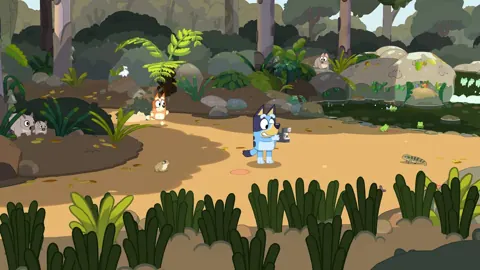
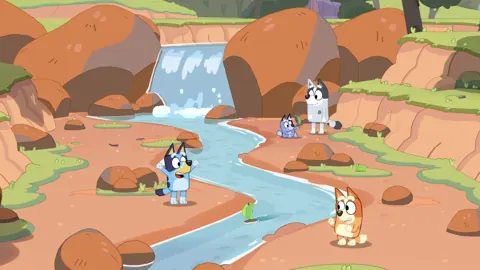
Once your Bluey's Happy Snaps Steam Deck setup is ready, the camera becomes the center of the adventure. Bluey and Bingo travel through familiar places around Brisbane, including South Bank, The Lookout, Hammerbarn, and The Park.
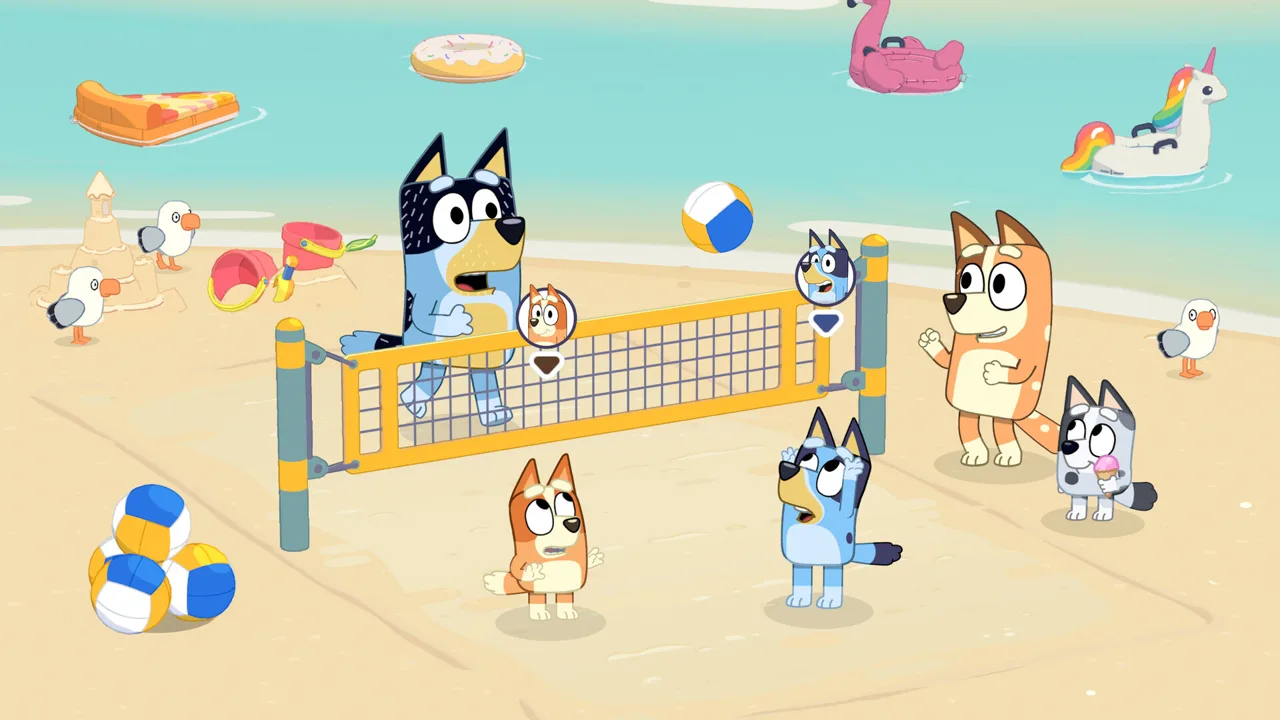 Image: Steam / Gameloft
Each location gives the photography a different context. Wildlife offers subjects to spot, friends bring character moments, and games create action worth capturing. Your scrapbook then turns those photographs into something you can arrange and decorate.
| Activity | What it involves |
|---|---|
| Wildlife photography | Photograph Australian animals encountered while exploring |
| Character photography | Capture Bluey, Bingo, and familiar friends |
| Games and toys | Photograph playful activities and shared moments |
| Scrapbook decorating | Arrange pictures and personalize pages with decorations |
| Coloring | Fill coloring pages as part of scrapbook activities |
| Dress-ups | Unlock outfits during the adventure |
Follow the photo clues
Use photo clues to give each outing a clear objective. The game includes prompts involving animals, toys, friends, and distinctive sights.
Read the clue before scanning the environment. If it asks for an animal, concentrate on wildlife. If it points toward a toy or a special view, shift your attention accordingly. This keeps the search connected to a specific subject.
Turn that process into a shared conversation with a younger player: identify the subject, look for it together, then let them take the picture. The camera gives them a concrete way to participate even when an adult helps interpret the words.
Look for activities as well as objects
The adventure includes familiar play such as Pass the Parcel, hide-and-seek, trampoline activities, and water games. These give you moments to photograph beyond simply finding an object.
Watch what the characters are doing before framing a shot. Capture the activity itself when you want a scrapbook page to tell the story of the outing.
For Bluey's Happy Snaps Steam Deck play, that creates a useful rhythm: explore a little, find something happening, take a photograph, and spend time with the pictures afterward.
Make the scrapbook your own
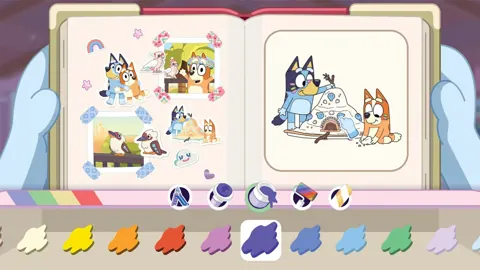
Photography unlocks stickers and decorations for personalizing your scrapbook. Pages can include arranged snapshots, stamps, tape, and coloring activities.
Choose a theme before decorating. Build a wildlife page around animals, group pictures of friends, or focus on a favorite game. These are ways to organize the creative tools already available to you.
Let the child choose which pictures deserve attention. A funny pose or a favorite character can matter more to them than a carefully composed landscape. Use the decorating options to build on that choice rather than rushing to the next outing.
Plan a Family Session Around Photos and Play
Bluey's Happy Snaps Steam Deck sessions can revolve around a specific activity instead of a completion target. Choose a wildlife search, a shared photo outing, or a scrapbook page to decorate.
For a photography session, pick a subject and look for opportunities to capture it. For a creative session, spend time arranging pictures and adding decorations. For local co-op, decide who wants the camera role before beginning.
Use these simple activity ideas:
- Find an animal: Follow a wildlife clue and identify the subject together.
- Photograph a friend: Make a familiar character the focus of a picture.
- Capture a game: Look for a playful moment rather than a stationary subject.
- Decorate a themed page: Group related photographs and choose matching decorations.
- Continue playing afterward: Try a real-world activity inspired by the adventure.
The game’s “Play for Real Life” ideas connect its activities with everyday play. Birdwatching, cushion forts, cardboard creations, and imaginative games all fit that connection between exploring on screen and doing something afterward.
After photographing wildlife, look for birds outside together. After enjoying a pretend game, bring that idea into the room with familiar toys or household objects. Let the child choose which part of the outing they want to carry into their own play.
There are no in-game purchases, so the adventure does not include an in-game spending system. Unlockable dress-ups and scrapbook decorations give you things to pursue through play.
Before handing over the Deck, settle the practical basics: select the text language, introduce the main controller symbols, and explain what the camera does. Then let the player make choices about subjects and scrapbook pages. Those choices are central to the adventure’s emphasis on exploration and creativity.
FAQ
Is Bluey's Happy Snaps Steam Deck Verified?
Yes. Bluey's Happy Snaps Steam Deck compatibility is Verified. The default controller configuration works, button symbols match the device, interface text is legible, and the default configuration is rated performant.
What settings should I use on Steam Deck?
Start with the default game configuration and controller layout. Use the Deck’s built-in controls for the main player. American English text and English voice acting are available.
Can I use an external controller as the main player?
External controllers are not supported for the primary player on Steam Deck. Keep the main player on the handheld’s built-in controls when planning your session.
Does Bluey's Happy Snaps have multiplayer or in-game purchases?
The game includes local two-player co-op, with one player leading behind the camera and the other exploring and posing alongside them. It has no online play and no in-game purchases.
Continue with
 Bluey's Happy Snaps Steam: PC Specs and Co-Op GuideBluey's Happy Snaps Steam guide covering PC requirements, local co-op, controller support, launch bonuses, and scrapbook tips. Get ready to play together.
More in Platforms
Bluey's Happy Snaps Download: PC and Console Guide
Find your Bluey's Happy Snaps download on PC, PlayStation, Xbox, and Nintendo Switch. Compare editions, check PC specs, and get ready for family photo fun.
Bluey's Happy Snaps Nintendo Switch 2: Buyer's Guide
Explore Bluey's Happy Snaps Nintendo Switch 2 features, price, local co-op, mouse controls, and editions. Find out what to know before your family plays.
Bluey's Happy Snaps Nintendo Switch: A Family Guide
Explore Bluey's Happy Snaps Nintendo Switch with details on local co-op, Switch 2 features, editions, storage, and scrapbook tips for your family game.
Bluey's Happy Snaps Platforms and Wishlist: Full Guide
Bluey's Happy Snaps platforms and wishlist guide: compare consoles and PC, explore editions, check Game Pass access, and choose where to buy or save it.
Join the community
Official channels for news, updates and player help: