Bluey's Happy Snaps Download: PC and Console Guide
Find your Bluey's Happy Snaps download on PC, PlayStation, Xbox, and Nintendo Switch. Compare editions, check PC specs, and get ready for family photo fun.
Jump to
Where to Get Your Bluey's Happy Snaps Download
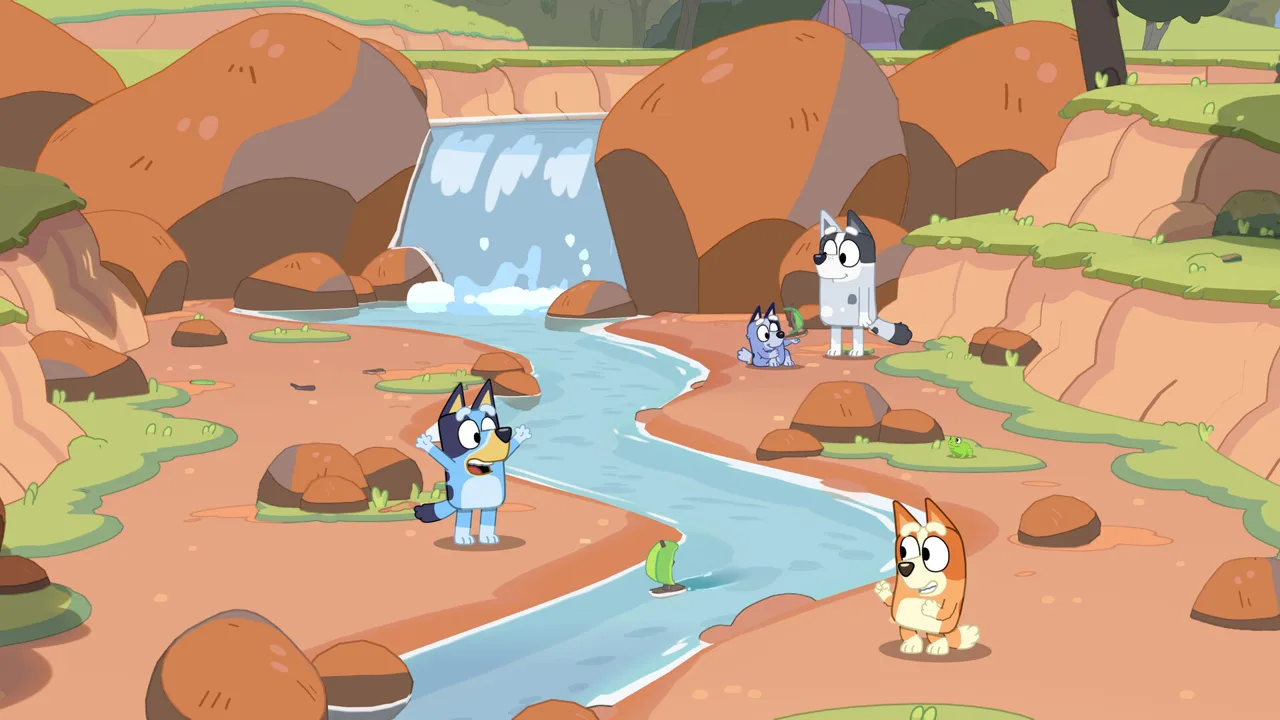
Dad’s old camera is ready for another family adventure, and getting the right Bluey's Happy Snaps download starts with choosing your platform. The game is available on PC and consoles, with solo play, local two-player adventures, and scrapbooks full of your favorite discoveries. Before buying, match your Bluey's Happy Snaps download to your device and check the edition’s included extras.
Bluey’s Happy Snaps launched globally on October 15, 2026. You can explore with Bluey and Bingo on Windows PC, PlayStation, Xbox, Nintendo Switch, and Nintendo Switch 2.
The adventure centers on photographing familiar places, wildlife, toys, and games around Bluey’s world. Between outings, you can turn those pictures into scrapbook pages with stickers, coloring activities, and decorations.
| Platform | Digital download destination | Supported systems |
|---|---|---|
| Windows PC | Steam | Windows |
| Windows PC | Epic Games Store | Windows |
| Xbox console and PC | Xbox store | Xbox One, Xbox Series X|S, Xbox on PC |
| PlayStation | PlayStation Store | PlayStation 4, PlayStation 5 |
| Nintendo | Nintendo eShop | Nintendo Switch, Nintendo Switch 2 |
For PC, head to Bluey’s Happy Snaps on Steam or Bluey’s Happy Snaps on the Epic Games Store. Xbox players can use the Bluey’s Happy Snaps Xbox store page.
On PlayStation or Nintendo, search your console’s digital store for the full game name. Check the platform and edition before completing your purchase, especially when shopping for a household with multiple consoles.
Xbox Game Pass and Play Anywhere
Bluey’s Happy Snaps is included with Xbox Game Pass and supports Xbox Play Anywhere. Check your subscription’s access to the game before purchasing a separate copy.
For an Xbox and Windows household, review the Play Anywhere option when choosing where to buy. Keep that purchase decision tied to the Xbox version; Steam and Epic Games Store are separate download destinations.
Your Bluey's Happy Snaps download also needs room on the target device. Check the storage requirement displayed during installation and free up space before starting, particularly on a console shared with other games.
Choose Your Edition Before Downloading
The base adventure gives you the photography, exploration, and scrapbook activities at the center of Happy Snaps. Deluxe adds a Grannies-themed bonus mode, extra dress-up options, and digital artwork.
 Image: Steam / Gameloft
If you want the physical activity materials, look at the Activity Book Edition. Its drawing pages and sticker sheets give kids something tangible to use alongside the game.
| Edition | Included content | Format detail |
|---|---|---|
| Standard Edition | Base game | Core photography and scrapbook adventure |
| Deluxe Edition | Base game, “Here Come the Grannies” bonus game mode, extra dress-ups, digital art album | Additional game and digital content |
| Activity Book Edition | Deluxe Edition, 44 activity pages, two extra sticker sheets | Includes physical activity materials |
A limited-time digital launch promotion offers the Deluxe Edition at the Standard Edition price. Review the offer attached to your chosen purchase before paying for an upgrade separately. The promotion is time-limited, so use the checkout’s edition name and included-content details to guide your purchase.
Keep the digital art album and the physical activity book separate in your shopping checklist. A digital art extra does not give you the Activity Book Edition’s printed pages or sticker sheets.
Digital and Physical Availability
Digital versions launched on October 15 across the supported platforms. Physical versions also launched that day in select markets for PlayStation 5, Xbox, Nintendo Switch, and Nintendo Switch 2.
In Japan, Southeast Asia, Hong Kong, and Taiwan, physical editions arrive on November 26, 2026, following the October digital launch.
Choose the edition around the extras you actually want. If your priority is starting the adventure digitally, focus on the correct platform, purchase option, and bonus content. If you want drawing activities away from the screen, check the Activity Book Edition’s contents before ordering.
Bluey’s Happy Snaps has no in-game purchases. Make your Bluey's Happy Snaps download decision around the upfront edition and its included extras.
Check the PC Requirements and Controller Support
For a PC Bluey's Happy Snaps download, compare your hardware with both requirement levels before installing. The Windows version requires a 64-bit processor and operating system, with Windows 11 or a valid compatibility layer specified.
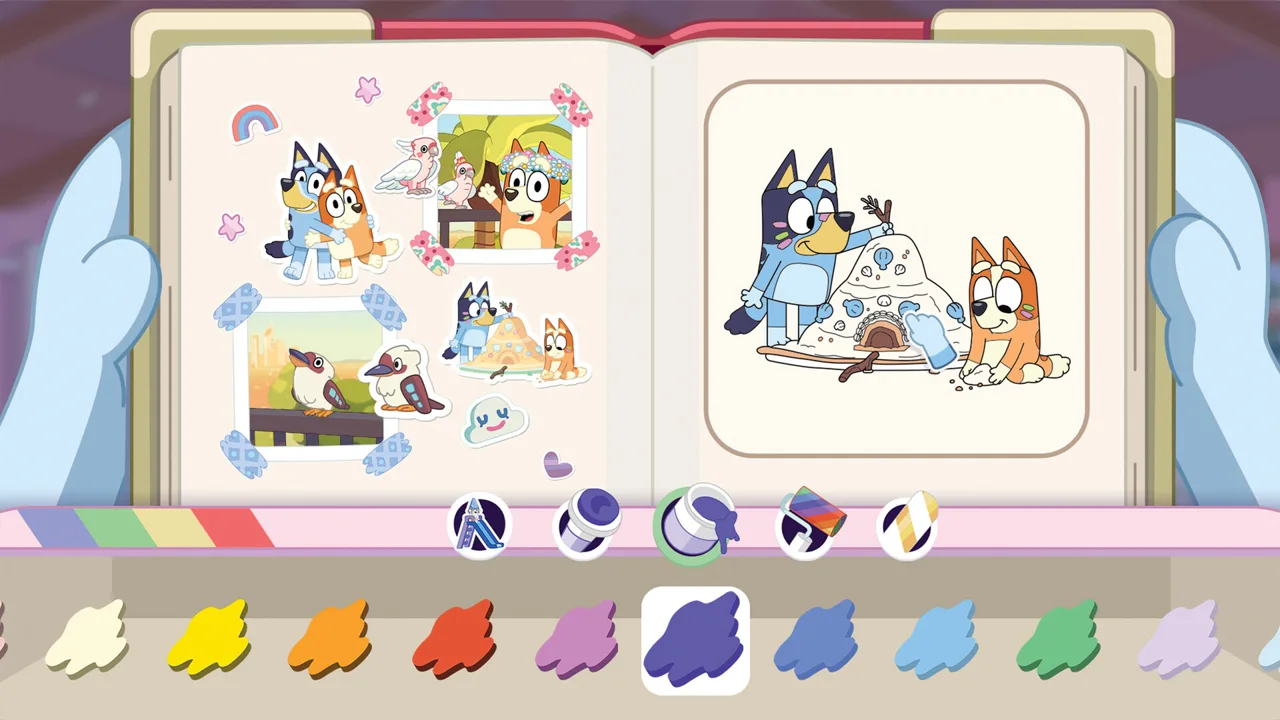 Image: Steam / Gameloft
The minimum configuration calls for 8 GB of RAM, while the recommended configuration calls for 16 GB. Graphics requirements also rise between the two, so check the GPU as carefully as the processor.
| Component | Minimum requirements | Recommended requirements |
|---|---|---|
| Operating system | Windows 11 or valid compatibility layer | Windows 11 or valid compatibility layer |
| Processor | AMD Ryzen 5 1600X or Intel Core i5-9400F | AMD Ryzen 5 3600X or Intel Core i5-10400 |
| Memory | 8 GB RAM | 16 GB RAM |
| Graphics | AMD Radeon RX 6400 or Nvidia GeForce GTX 1650 | AMD Radeon RX 5700 XT or Nvidia GeForce RTX 3050 |
| Network | Broadband internet connection | Broadband internet connection |
| Architecture | 64-bit processor and operating system | 64-bit processor and operating system |
Steam’s PC version supports Windows and has no native macOS or Linux version. Match your computer to the supported operating system before purchasing.
The Steam version includes full controller support, and a gamepad is recommended. Have your controller ready before settling in with a younger player, particularly if you plan to share the adventure.
Steam also supports achievements, Steam Cloud, and Family Sharing. These are features of the Steam version; keep them in mind when comparing your PC purchase options.
Prepare for the Initial Download
Use this short checklist before starting:
- Compare your processor, graphics card, and RAM with the requirements.
- Check the installation’s storage requirement.
- Have a compatible controller available.
- Allow time for the game download and updates.
- Review the language options needed by your household.
Broadband internet appears in the PC requirements. You will also need an internet connection to download the free update that adds further localized voiceovers.
Set Up Local Co-op and Language Options
Bluey’s Happy Snaps supports one or two players on the same system. The main player leads the adventure behind the camera, while the second player can explore, pose, and join in with toys.
 Image: Steam / Gameloft
That division gives you a clear way to share an outing: one person handles photography while the other helps create the moment. Photograph a pose, play with a toy together, or look for wildlife during your next stop.
There is no online play. Plan your shared session around being together at the same system.
For Nintendo multiplayer, each player needs a compatible controller. Check your controller setup before promising a two-player session.
Language support is another useful check before completing a Bluey's Happy Snaps download, especially for kids who rely on spoken instructions.
| Language feature | Availability |
|---|---|
| English text | Australian English and U.S. English at launch |
| Other launch text options | German, Japanese, Castilian Spanish, Latin American Spanish, Brazilian Portuguese, Simplified Chinese, Traditional Chinese, French, Italian |
| English voiceovers | Available at launch |
| Additional localized voiceovers | Free post-launch update for Castilian Spanish, Latin American Spanish, French, German, Italian, Japanese, Brazilian Portuguese, Mandarin |
| PlayStation launch voiceovers | English, Latin American Spanish, French, Brazilian Portuguese |
Text and voice support follow different schedules. Choose the text language your child reads comfortably, then check the voice options available on your platform.
On PlayStation, the launch voice selection includes the additional languages shown above. For other localized voiceovers, download the free language update when it becomes available.
What to Do After Your Download Finishes
Once your Bluey's Happy Snaps download is ready, start looking at each location through the camera. Bluey and Bingo’s adventure takes you through their family home and familiar destinations such as South Bank, The Lookout, and Hammerbarn.
The camera connects exploration with your scrapbook. Photographing characters, wildlife, and activities unlocks stickers, while your growing collection gives you more ways to decorate pages.
Follow Photo Clues Around Each Location
Photo clues give you specific subjects to find. Tasks include spotting wildlife, finding toys, and capturing playful moments.
Read the clue before taking another picture. If it asks for a dragonfly, a floating toy, or a special view, focus your search on that subject. For action clues, watch the activity before lining up the photograph.
Games and activities include hide-and-seek, Pass the Parcel, trampoline play, and water tag. Keep your camera in mind while joining the fun; the activity itself can provide the picture you need.
Make the Scrapbook Part of the Adventure
Your scrapbook gives the photos somewhere to go. You can arrange snapshots, add stickers and stamps, use colored tape, and work on coloring pages.
Build a page around something you enjoyed photographing. Group wildlife pictures together, decorate a favorite family moment, or combine activity photos with matching stickers. Use the unlocked decorations to give each outing its own look.
Costumes for Bluey and Bingo are also part of the adventure’s unlockable collection. Keep exploring and photographing the places, friends, and games you encounter.
Bring an Activity Away From the Screen
“For Real Life” ideas connect the game’s activities with everyday play. Examples include birdwatching, cushion forts, cardboard-box creations, and imaginative games with familiar toys.
Pick an activity that fits your space and supplies. Try backyard birdwatching after a wildlife outing, or build something from cardboard after decorating a scrapbook page. Let your child choose which idea to carry into the next play session.
FAQ
Where can I get a Bluey's Happy Snaps download?
You can download the game through Steam, Epic Games Store, the Xbox store, PlayStation Store, and Nintendo eShop. Supported platforms include Windows PC, PS4, PS5, Xbox One, Xbox Series X|S, Nintendo Switch, and Nintendo Switch 2.
Is Bluey’s Happy Snaps included with Xbox Game Pass?
Yes. Bluey’s Happy Snaps is included with Xbox Game Pass and supports Xbox Play Anywhere. Check your subscription’s access to the game before buying a separate copy.
Does Bluey’s Happy Snaps support online multiplayer?
No. The game supports solo play and local two-player co-op on the same system. One player leads with the camera, while the second explores, poses, and joins activities.
Is there a Bluey's Happy Snaps download for Mac or Linux?
The Steam version supports Windows and has no native Mac or Linux version. Its PC requirements specify Windows 11 or a valid compatibility layer, along with a 64-bit processor and operating system.
Continue with
 Bluey's Happy Snaps Nintendo Switch 2: Buyer's GuideExplore Bluey's Happy Snaps Nintendo Switch 2 features, price, local co-op, mouse controls, and editions. Find out what to know before your family plays.
More in Platforms
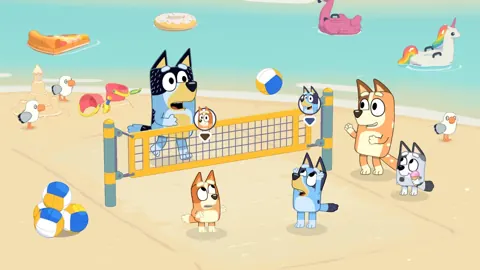
Bluey's Happy Snaps Nintendo Switch: A Family Guide
Explore Bluey's Happy Snaps Nintendo Switch with details on local co-op, Switch 2 features, editions, storage, and scrapbook tips for your family game.
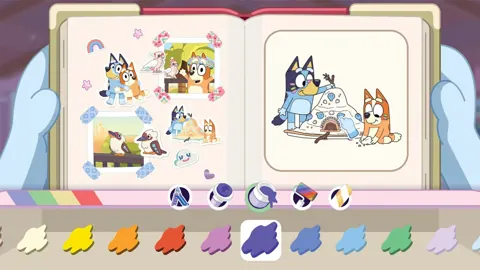
Bluey's Happy Snaps Platforms and Wishlist: Full Guide
Bluey's Happy Snaps platforms and wishlist guide: compare consoles and PC, explore editions, check Game Pass access, and choose where to buy or save it.
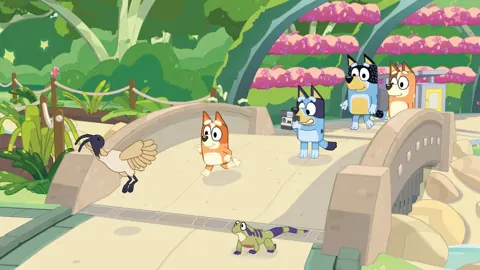
Bluey's Happy Snaps PS4: Release, Co-Op & Buying Guide
Play Bluey's Happy Snaps on PS4 with Bluey and Bingo. Check the digital release, local co-op, scrapbook activities, and family features before you buy.

Bluey's Happy Snaps PS5: Price, Co-Op & Buying Guide
Bluey's Happy Snaps PS5 is out now. Compare editions, check prices, explore local co-op, and get practical tips for photos, scrapbooks, and family play.
Join the community
Official channels for news, updates and player help: